LinearLayout!!
file에 뉴 프로젝트를 생성

프로젝트를 생성해서 오늘 날짜로 생성
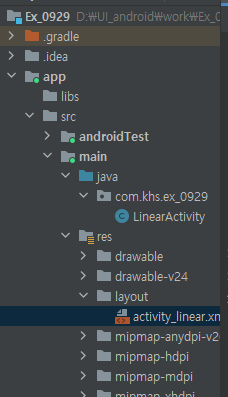
MainActivity를 LinearActivity로 바꾸고
activity_main을 activity_linear로 바꿔준다
activity_linear로 들어가서 수정
<?xml version="1.0" encoding="utf-8"?>
<LinearLayout xmlns:android="http://schemas.android.com/apk/res/android"
    xmlns:app="http://schemas.android.com/apk/res-auto"
    xmlns:tools="http://schemas.android.com/tools"
    android:layout_width="match_parent"
    android:layout_height="match_parent"
    tools:context=".LinearActivity"
    android:orientation="vertical">
    <!--orientation : horizontal - 수평정렬
                      vertical - 수직정렬-->
    <TextView
        android:layout_width="wrap_content"
        android:layout_height="wrap_content"
        android:text="안녕하세요"
        android:background="#aaaaff"/>
    <!--wrap_content: 가지고 있는 내용만큼만 영역을 확보
        match_parent: 부모여역을 모두 차지하는 영역을 확보-->

    <TextView
        android:layout_width="wrap_content"
        android:layout_height="wrap_content"
        android:text="안녕하세요"
        android:background="#8ac"
        android:textColor="#f00"
        android:textSize="30dp"/>
    <!--dp(device independent pixel) : 기종별 독립적인 픽셀 단위
    안드로이드는 다양한 해상도를 가진 휴대폰(디바이스)들이 많이 존재하기 때문에
    px, pt 형태가 아닌 현재 사용중인 디바이스의 해상도 비율에 맞도록
    사이즈를 시정해 줄 필요가 있다.-->
    <SeekBar
        android:layout_width="match_parent"
        android:layout_height="wrap_content"/>

    <LinearLayout
        android:layout_width="match_parent"
        android:layout_height="wrap_content"
        android:orientation="horizontal">
        <CheckBox
            android:layout_width="wrap_content"
            android:layout_height="wrap_content"
            android:text="check1"/>
        <CheckBox
            android:layout_width="wrap_content"
            android:layout_height="wrap_content"
            android:text="check1"/>
    </LinearLayout>

    <RadioGroup
        android:layout_width="wrap_content"
        android:layout_height="wrap_content"
        android:orientation="horizontal">

        <RadioButton
            android:layout_width="wrap_content"
            android:layout_height="wrap_content"
            android:text="radio1"/>
        <RadioButton
            android:layout_width="wrap_content"
            android:layout_height="wrap_content"
            android:text="radio2"/>
        <RadioButton
            android:layout_width="wrap_content"
            android:layout_height="wrap_content"
            android:text="radio3"/>

    </RadioGroup>


    <ProgressBar
        android:layout_width="100dp"
        android:layout_height="100dp"/>

    <RatingBar
        android:layout_width="wrap_content"
        android:layout_height="wrap_content"/>

    <Button
        android:layout_width="wrap_content"
        android:layout_height="wrap_content"
        android:text="안녕"/>

    <EditText
        android:layout_width="match_parent"
        android:layout_height="wrap_content"
        android:hint="input text"/>

    <EditText
        android:layout_width="match_parent"
        android:layout_height="wrap_content"
        android:hint="input number"
        android:inputType="number"/>
    <EditText
        android:layout_width="match_parent"
        android:layout_height="wrap_content"
        android:hint="input pwd"
        android:inputType="textPassword"/>
    <EditText
        android:layout_width="match_parent"
        android:layout_height="wrap_content"
        android:hint="input email"
        android:inputType="textEmailAddress"/>


</LinearLayout>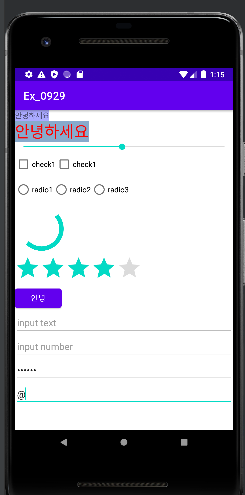
---안드로이드에 메인 화면 바꾸기---
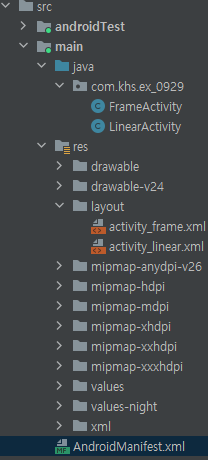

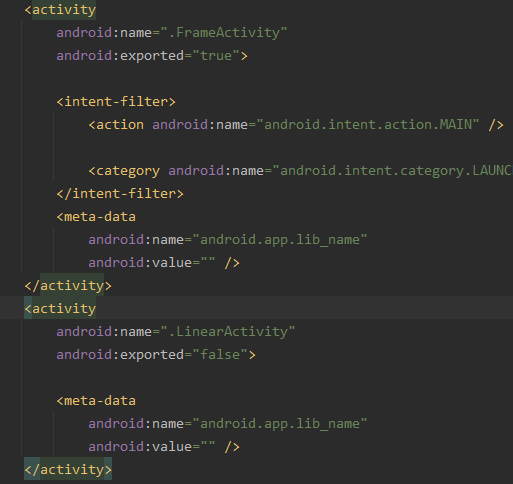
AndroidManifest.xml 에 들어가면 밑에 보이는것 처럼 우리가 만든 activity가 있다.


FrameLayout 알아보기
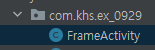
FrameActivity 생성
<?xml version="1.0" encoding="utf-8"?>
<FrameLayout xmlns:android="http://schemas.android.com/apk/res/android"
    xmlns:app="http://schemas.android.com/apk/res-auto"
    xmlns:tools="http://schemas.android.com/tools"
    android:layout_width="match_parent"
    android:layout_height="match_parent"
    tools:context=".FrameActivity">

    <TextView
        android:layout_width="100dp"
        android:layout_height="100dp"
        android:background="#000"
        android:text="123"
        android:textColor="#fff"/>

    <TextView
        android:layout_width="100dp"
        android:layout_height="100dp"
        android:background="#0f0"
        android:text="123"
        android:layout_marginLeft="20dp"
        android:layout_marginTop="30dp"
        android:paddingLeft="20dp"
        android:paddingTop="20dp"/>
    <TextView
        android:layout_width="100dp"
        android:layout_height="100dp"
        android:background="#00f"
        android:layout_gravity="right"/>
    <!--Layout_gravity: 해당 객체의 위치를 통째로 변경하는 것-->

    <TextView
        android:layout_width="100dp"
        android:layout_height="100dp"
        android:background="#f00"
        android:layout_gravity="right|bottom"/>
    <TextView
        android:layout_width="200dp"
        android:layout_height="200dp"
        android:background="#aaf"
        android:layout_gravity="center"
        android:gravity="center"
        android:text="hello"
        android:textSize="30dp"/>
    <!--gravity : 객체 내부의 내용물의 위치를 변경-->


</FrameLayout>
RelativeLayout 알아보기!!
RelativeActivity 생성후
activity_relative 수정
<?xml version="1.0" encoding="utf-8"?>
<RelativeLayout xmlns:android="http://schemas.android.com/apk/res/android"
    xmlns:app="http://schemas.android.com/apk/res-auto"
    xmlns:tools="http://schemas.android.com/tools"
    android:layout_width="match_parent"
    android:layout_height="match_parent"
    tools:context=".RelativeActivity">
    <!--Relativeout은 방향성을 가지고 있지는 않으나
        자식객체의 위치선정에 대해서 상대적으로 자리를 잡아주는 것이 가능한 레이아웃-->
    <TextView
        android:layout_width="wrap_content"
        android:layout_height="wrap_content"
        android:text="URL"
        android:textSize="40dp"
        android:id="@+id/tv"/>

    <TextView
        android:layout_width="wrap_content"
        android:layout_height="wrap_content"
        android:text="www.naver.com"
        android:textSize="30dp"
        android:layout_toRightOf="@id/tv"
        android:id="@+id/tv2"/>

    <Button
        android:layout_width="wrap_content"
        android:layout_height="wrap_content"
        android:text="ok"
        android:layout_below="@id/tv2"
        android:layout_alignRight="@id/tv2"/>

    <TextView
        android:layout_width="100dp"
        android:layout_height="100dp"
        android:background="#aaf"
        android:layout_centerInParent="true"/>

    <Button
        android:layout_width="wrap_content"
        android:layout_height="wrap_content"
        android:text="bottom"
        android:layout_alignParentBottom="true"
        android:layout_alignParentRight="true"
        android:layout_marginBottom="10dp"
        android:layout_marginRight="10dp"/>

</RelativeLayout>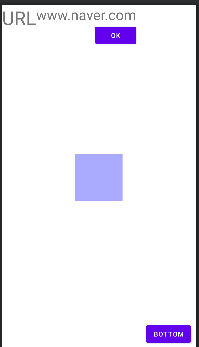
'안드로이드' 카테고리의 다른 글
| [안드로이드] 09/28 안드로이드 설치 및 환경 설정 (0) | 2022.09.28 |
|---|

댓글